Linuxips
  • Home
  • Linux
  • Debian
  • Ubuntu
  • Fedora
  • Arch Linux
No Result
View All Result
Linuxips
  • Home
  • Linux
  • Debian
  • Ubuntu
  • Fedora
  • Arch Linux
No Result
View All Result
Linuxips
No Result
View All Result
Home Commands

How to Install HTOP on Ubuntu 22.04 (Monitor System Processes)

admin by admin
December 30, 2025
Reading Time: 3 mins read
0
How to Install HTOP on Ubuntu

HTOP is a popular system monitoring tool that allows users to monitor the system status, resources, and running processes in real time. It is a useful alternative to the default top command-line tool on Ubuntu. In this article, we will discuss how to install HTOP on Ubuntu 22.04.

Contents hide
1 How to Install HTOP on Ubuntu
1.1 Update your Ubuntu
1.2 Installation of HTOP
2 Using HTOP
3 How to Uninstall HTOP on Ubuntu
4 Conclusion

How to Install HTOP on Ubuntu

Update your Ubuntu

First of all, we have to update our Ubuntu. So you have to run the following command in the terminal.

$ sudo apt update
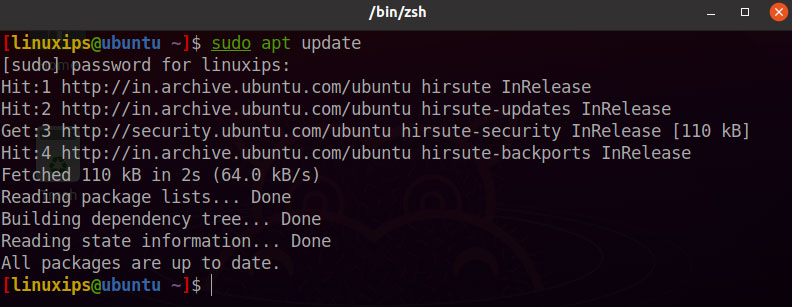
Update Ubuntu

We have to update Ubuntu from time to time. And the update depends on your internet speed.

Installation of HTOP

In Ubuntu, we have to install the HTOP using the following command:

$ sudo apt install htop
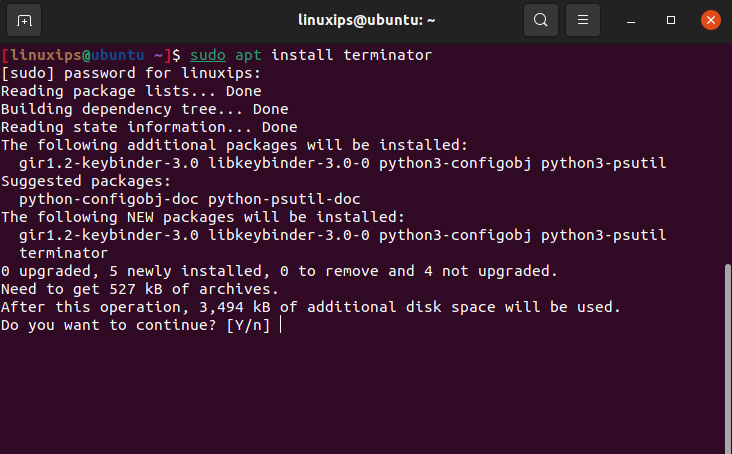
Terminator on Ubuntu

So after completing the above command. The HTOP (Monitor System Processes) is installed in your Ubuntu. Now you have to simply run the htop command in your terminal. So this is the htop in your Ubuntu.
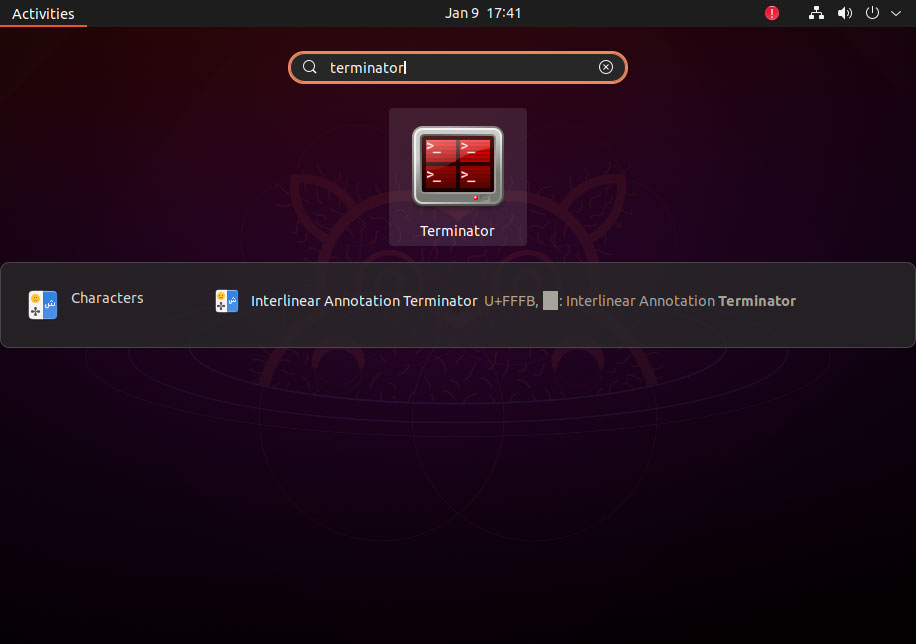
Open Terminator on Ubuntu

Using HTOP

Now that HTOP is installed, you can use it to monitor your system resources and processes. To start HTOP, simply open the terminal and type the following command:

htop

This will launch the HTOP interface, which displays system resource usage and process information in real-time.

HTOP interface is divided into three sections. The top section displays system resource usage, including CPU usage, memory usage, and swap usage. The middle section displays a list of running processes, along with their resource usage. The bottom section displays a list of active system threads.

You can interact with HTOP using various keyboard shortcuts. Here are some of the most useful shortcuts:

  • F1 or h: Opens the HTOP help menu
  • F2 or S: Opens the setup menu, which allows you to customize HTOP settings
  • F3 or /: Allows you to search for a specific process by name
  • F4 or t: Allows you to filter processes by process tree
  • F5 or m: Allows you to sort processes by memory usage
  • F6 or c: Allows you to sort processes by CPU usage
  • F7 or P: Allows you to sort processes by process ID
  • F8 or T: Allows you to sort processes by time
  • F9 or k: Sends a signal to a selected process to kill it
  • F10 or q: Quits HTOP

How to Uninstall HTOP on Ubuntu

If we have to uninstall the htop we have to follow the following command:

Uninstall only htop:

$ sudo apt remove htop

Uninstall htop and its dependencies (which are no longer needed):

$ sudo apt remove --auto-remove htop

Conclusion

So this is the way how to install htop on Ubuntu. HTOP is a powerful tool for monitoring system resources and processes on Ubuntu 22.04. With the easy-to-use interface and keyboard shortcuts, HTOP makes it easy to monitor the system status in real time. By following the steps outlined in this article, you can easily install HTOP and start using it to optimize your system’s performance.

Related Linux Tutorials:

  • How to Install Cisco Packet Tracer on Ubuntu
  • How to install Tweak Tool on Ubuntu 21.04
  • ZSH to BASH | How to Install ZSH on Ubuntu
  • How to Install Ubuntu
  • Install Opera Browser on Ubuntu
  • Install Fonts in Ubuntu 22.04
ShareTweetSendShareShare
Previous Post

How to Install Vim on Arch Linux : A Quick Guide

admin

admin

Linuxips is a Linux blog that publishes articles and tutorials about server operations, installations, new techniques and Linux security.

Related Posts

How to Install Vim on Arch Linux
Arch Linux

How to Install Vim on Arch Linux : A Quick Guide

December 29, 2025
How To Use AppImage in Linux
Linux

How To Use AppImage in Linux [Complete Guide]

April 2, 2023
How To Install uGet Download Manager On Ubuntu
Linux

How To Install uGet Download Manager On Ubuntu

March 8, 2023
How to Install ZSH on Ubuntu 22.10
Ubuntu

How to Install ZSH on Ubuntu 22.10

March 7, 2023
How to Install Terminator on Ubuntu
Ubuntu

How to Install Terminator on Ubuntu, a Linux Terminal Emulator

March 2, 2023
How to Install Tweak Tool on Ubuntu
Ubuntu

How to install Tweak Tool on Ubuntu 22.04

February 28, 2023

Leave a Reply Cancel reply

Your email address will not be published. Required fields are marked *

No Result
View All Result

You might also like

How to Install HTOP on Ubuntu

How to Install HTOP on Ubuntu 22.04 (Monitor System Processes)

December 30, 2025
How to Install Vim on Arch Linux

How to Install Vim on Arch Linux : A Quick Guide

December 29, 2025
Tails 7.2

Tails 7.2 Released with Tor Browser 15.0 and Linux Kernel 6.12 LTS

November 13, 2025
Install ZSH on Arch Linux

How to Install ZSH on Arch Linux

January 6, 2024
How to Install ZSH on Kali Linux 2024.1

How to Install ZSH on Kali Linux

January 5, 2024
How To Use AppImage in Linux

How To Use AppImage in Linux [Complete Guide]

April 2, 2023

© 2024 Linuxips.com - Linux Tips, Tricks and Tutorials.

  • Home
  • Web Stories
  • Privacy Policy
  • Contact Us
  • Disclaimer
No Result
View All Result
  • Home
  • Linux
  • Debian
  • Ubuntu
  • Fedora
  • Arch Linux

© 2024 Linuxips.com - Linux Tips, Tricks and Tutorials.